In this tutorial, we are going to go over how to add a watermark to a photo in Lightroom.
In the old days, watermarks were placed on photographic prints using various processes. Now, most photographers are sharing their work digitally. The digital version of watermarks protect your work from thieves and copyright violations.
Another bonus to watermarking your photos is the free advertising that they provide. If your name or business is plastered across your photos, people may decide to look you up online.
How to Add a Watermark in Lightroom
I’m using a portrait I took of my husband for this tutorial. You can click on any image to view it at full size.
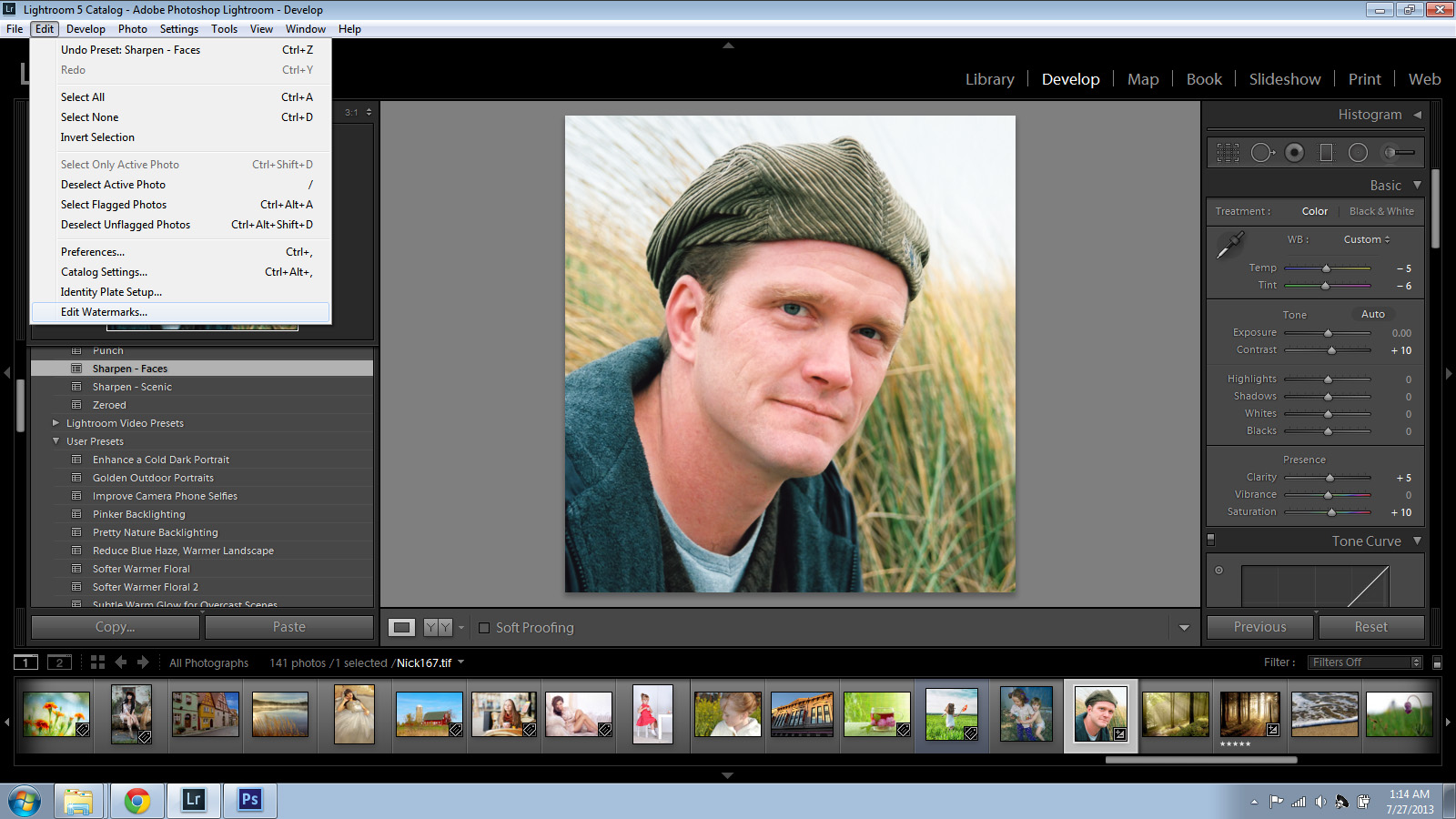
Once you have Lightroom open and you have a photo processed and ready to export, go to the “Edit” menu and then choose “Edit Watermarks…”.
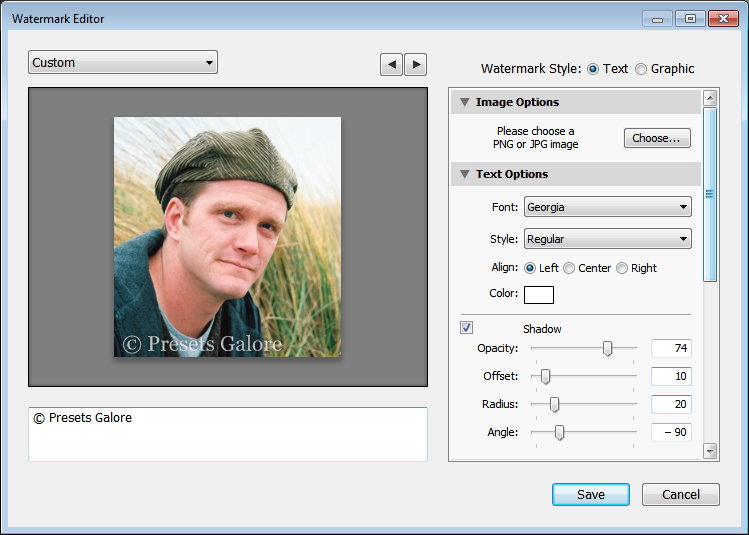
Next, go through the various options in the menu that pops up and adjust the watermark to your liking. You can choose a font, alter the drop-shadow, change the watermark’s position and the transparency of the watermark.
You can also upload an image if you have one already made in Photoshop.
In this example, I made the watermark larger and bolder than is typical, for the purpose of making it easier to see in this tutorial. You might consider making yours less obtrusive to the eye so that it doesn’t detract from the actual photo.
Once you have everything the way you want it, click “Save”.
A small window will pop up asking you to name your watermark.
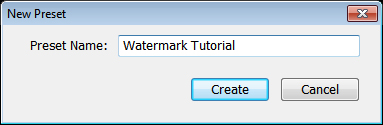
Once you click “Create”, your watermark is saved and can be used during the photo export process.
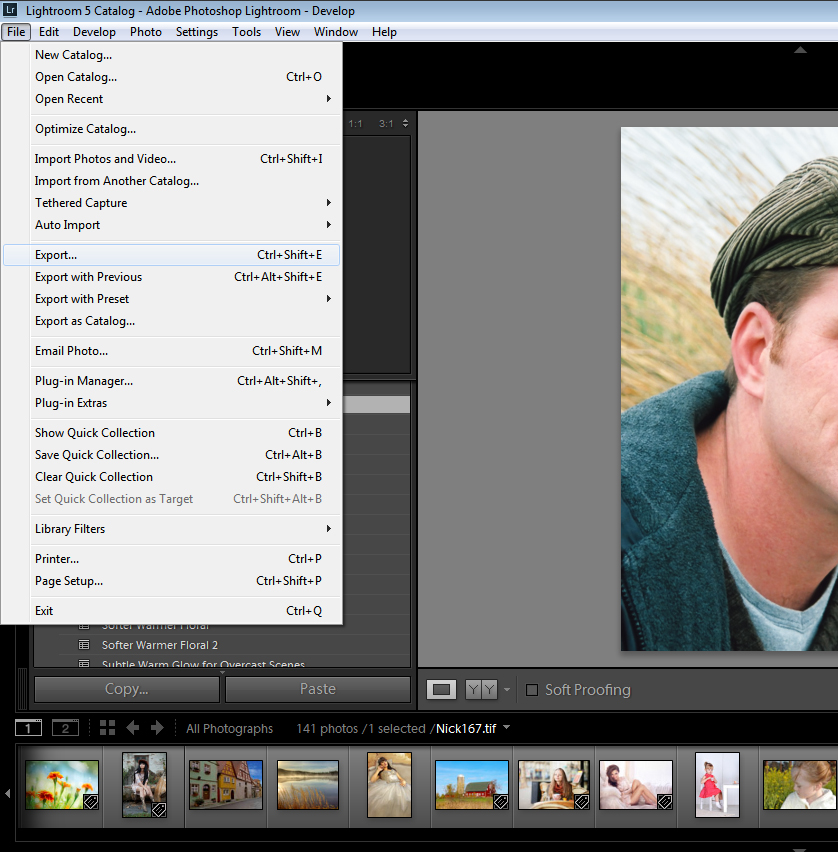
To export your photo with your saved watermark, go to “File” and choose “Export” as you normally would to export a photo.
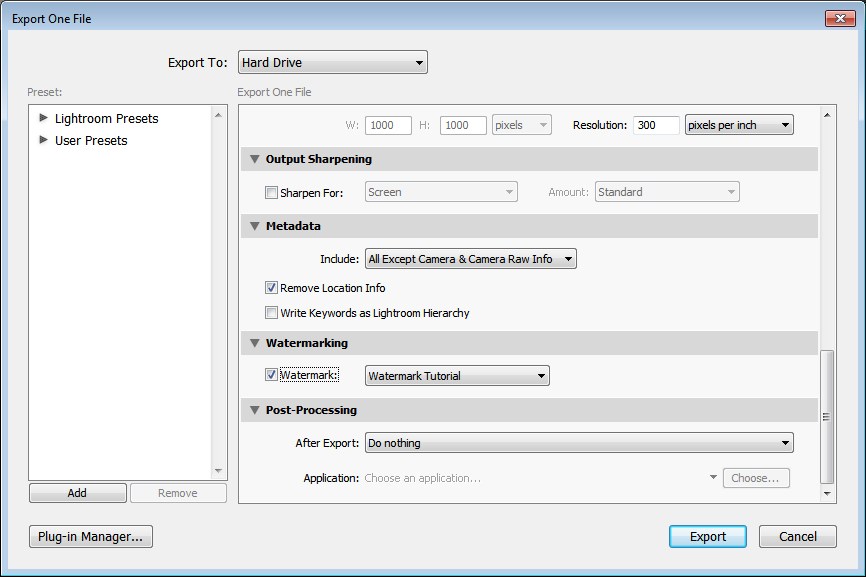
In the export menu, scroll down to “Watermarking”, be sure to click the checkbox, then choose your saved watermark from the drop-down menu.
Click “Export”.
Now you can browse to wherever you have saved your exported watermarked photo.




 Free Download – Deeply Matte – Photoshop Actions
  Free Download – Gorgeous Redheads – Photoshop Actions
  Free Download – Monochrome Landscapes – Lightroom Presets
  Free Download – Pinhole Photography – Lightroom Presets